
Disable Firefox Add-on Compatibility Checking
By Xps. 2 Comments
This article is updated for Firefox 28, but won’t work this way for Firefox 29. Read more for info.
In an article I wrote last April concerning the Firefox 4 add-on compatibility checker, I explained how to quickly disable said tool in order to allow older add-ons to run. That tutorial worked great for Firefox versions 4-7, but it has to be updated for Firefox 8. In this tutorial, I’ll walk through removing the old configuration and adding the new.
- Open up Firefox’s Configuration page by typing
about:configin the Address Bar. Read the prompt and click the button saying you’ll be careful. (See how to re-enable that warning prompt) - Inside the filter field, type in
extensions.checkto shorten the list of preferences - Right-click the
extensions.checkCompatibility.4.0preference and choose the Reset option. You will notice the Type changes from a boolean (True/False) to a string and the Value goes blank.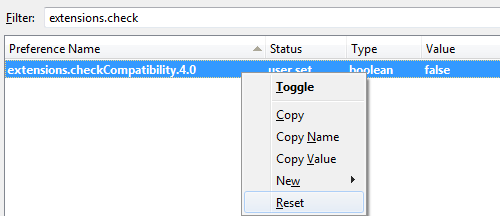
- Create a New > Boolean with a preference name
extensions.checkCompatibility.28.0and set the boolean value to False - Restart Firefox and your new preference will function just as it did for Firefox 4-27. The old preference you reset also disappeared from the Configuration page because it was an empty value.
Notice: Starting with FF 8, the old Preference needs to be removed and a new Preference with the proper major version number needs to be added each time Firefox updates. If Firefox goes from version 28 to 28.0.1, no change; if it goes to 28.1 or 29.0, you need to apply the change.

Comments (2)
-
I have since migrated to Pale Moon full-time. It is a web browser based on Firefox with all the security updates, but retains the nicer layout.
I haven’t been able to get this particular computer tech tip figured out in Pale Moon (any assistance?), but I also haven’t needed to.
With the current generation of Gecko-based browsers, there are a few other differences between Pale Moon and Firefox that are more obvious and not just “under the hood”: contrary to what Mozilla has done with their redesign of the user interface, Pale Moon will continue to provide a familiar set of controls and visual feedback similar to previous versions, including grouped navigation buttons of a decent size, a bookmarks toolbar that is enabled by default, tabs next to page content by default (easily switchable) and not in the least a functional status bar and more freedom in customization, to name a few things.
Pale Moon is, and will always be, completely FREE to download and use! (Freeware)
http://www.palemoon.org/
http://www.palemoon.org/screenshots.shtml
http://www.palemoon.org/layout-differences.shtmlAt least try the portable version out to see how you like it. http://www.palemoon.org/palemoon-portable.shtml

This tip as it is only worked for Firefox versions 8-28. Things changed (again) with Firefox 29 and this tip no longer applies. Unfortunately, without disabling add-on compatibility checking, some other adjustments from my article “Make Firefox 4+ Look Like FF 3.6” won’t work either.
I’ll continue to try and find solutions, but it seems Mozilla and their open-source community are intent on making more problems, and they can’t all be solved without significant help.
If you have a solution, please get in contact with me.